添加导航
编辑
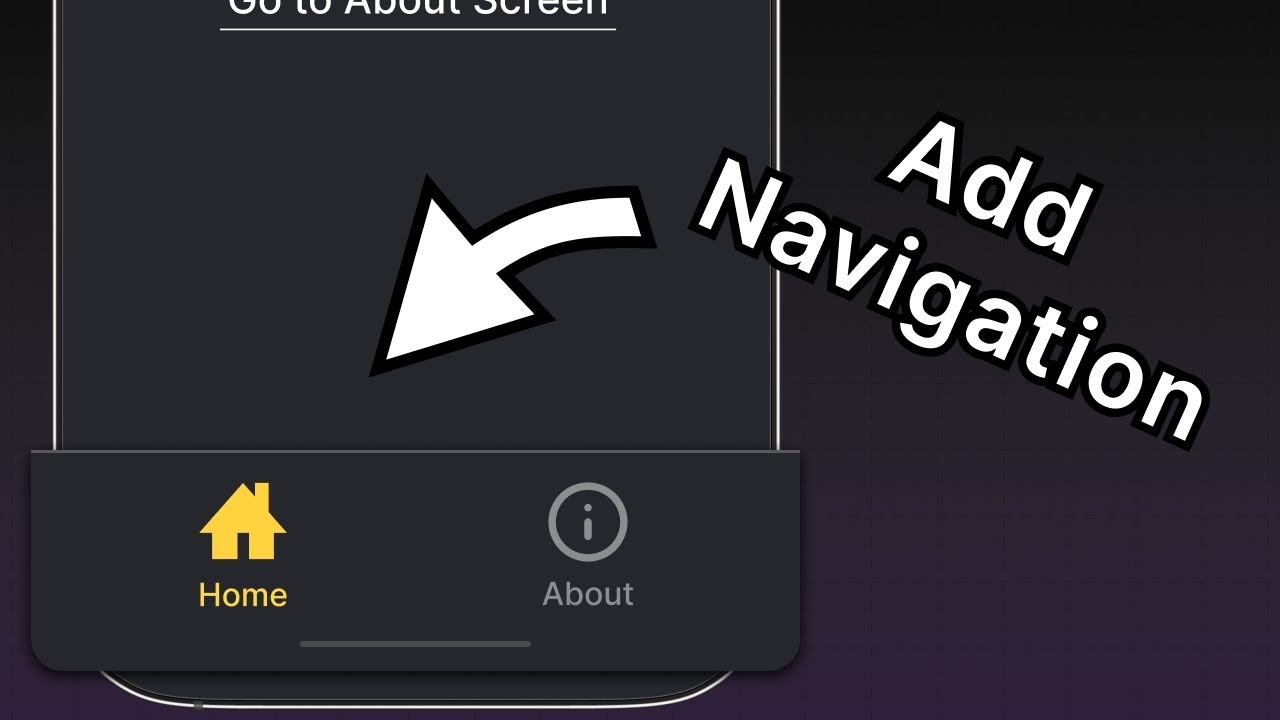
在本章中,了解如何向 Expo 应用添加导航。
在本章中,我们将学习 Expo Router 的基本知识,以创建堆栈导航和带有两个选项卡的底部选项卡栏。
Expo Router 基础知识
Expo Router 是一个基于文件的路由框架,用于 React Native 和 Web 应用。它管理屏幕之间的导航,并在多个平台上使用相同的组件。要开始,我们需要了解以下约定:
- app 目录:一个特殊目录,仅包含路由及其布局。添加到此目录的任何文件都会成为我们本地应用中的一个屏幕和网页上的一个页面。
- 根布局:app/_layout.tsx 文件。它定义了共享的 UI 元素,例如标题和选项卡栏,以便在不同的路由之间保持一致。
- 文件名约定:Index 文件名,如 index.tsx,与其父目录匹配,并且不添加路径段。例如,app 目录中的 index.tsx 文件匹配
/路由。 - 一个 路由 文件将一个 React 组件作为其默认值导出。它可以使用
.js、.jsx、.ts或.tsx扩展名。 - Android、iOS 和 Web 共享统一的导航结构。
上述列表足够我们开始。有关功能的完整列表,请参见 Introduction to Expo Router。
1
将新屏幕添加到堆栈中
让我们在 app 目录中创建一个名为 about.tsx 的新文件。当用户导航到 /about 路由时,它会显示屏幕名称。
import { Text, View, StyleSheet } from 'react-native';

export default function AboutScreen() {
  return (
    <View style={styles.container}>
      <Text style={styles.text}>About screen</Text>
    </View>
  );
}

const styles = StyleSheet.create({
  container: {
    flex: 1,
    backgroundColor: '#25292e',
    justifyContent: 'center',
    alignItems: 'center',
  },
  text: {
    color: '#fff',
  },
});
在 _layout.tsx 中:
- 添加一个
<Stack.Screen />组件和一个options属性,以更新/about路由的标题。 - 通过添加
options属性,将/index路由的标题更新为首页。
import { Stack } from 'expo-router';

export default function RootLayout() {
  return (
    <Stack>
      <Stack.Screen name="index" options={{ title: 'Home' }} />
      <Stack.Screen name="about" options={{ title: 'About' }} />
    </Stack>
  );
}
2
在屏幕之间导航
我们将使用 Expo Router 的 Link 组件从 /index 路由导航到 /about 路由。它是一个 React 组件,渲染具有给定 href 属性的 <Text>。
- 在 index.tsx 中从
expo-router导入Link组件。 - 在
<Text>组件之后添加一个Link组件,并传递href属性与/about路由。 - 为
Link组件添加fontSize、textDecorationLine和color的样式。它接受与<Text>组件相同的属性。
import { Text, View, StyleSheet } from 'react-native';
import { Link } from 'expo-router';

export default function Index() {
  return (
    <View style={styles.container}>
      <Text style={styles.text}>Home screen</Text>
      <Link href="/about" style={styles.button}>
        Go to About screen
      </Link>
    </View>
  );
}

const styles = StyleSheet.create({
  container: {
    flex: 1,
    backgroundColor: '#25292e',
    alignItems: 'center',
    justifyContent: 'center',
  },
  text: {
    color: '#fff',
  },
  button: {
    fontSize: 20,
    textDecorationLine: 'underline',
    color: '#fff',
  },
});
让我们来看看我们应用中的变化。单击 Link 导航到 /about 路由:
3
添加未找到路由
当路由不存在时,我们可以使用 +not-found 路由来显示备用屏幕。当我们希望在移动设备上导航到无效路由时显示自定义屏幕,而不是崩溃应用程序或在网页上显示 404 错误时,这非常有用。Expo Router 使用一个特殊的 +not-found.tsx 文件来处理这种情况。
- 在 app 目录中创建一个名为 +not-found.tsx 的新文件,以添加
NotFoundScreen组件。 - 从
Stack.Screen添加options属性,以显示此路由的自定义屏幕标题。 - 添加一个
Link组件以导航到/路由,这是我们的备用路由。
import { View, StyleSheet } from 'react-native';
import { Link, Stack } from 'expo-router';

export default function NotFoundScreen() {
  return (
    <>
      <Stack.Screen options={{ title: 'Oops! Not Found' }} />
      <View style={styles.container}>
        <Link href="/" style={styles.button}>
          Go back to Home screen!
        </Link>
      </View>
    </>
  );
}

const styles = StyleSheet.create({
  container: {
    flex: 1,
    backgroundColor: '#25292e',
    justifyContent: 'center',
    alignItems: 'center',
  },

  button: {
    fontSize: 20,
    textDecorationLine: 'underline',
    color: '#fff',
  },
});
要测试此功能,请在Web浏览器中导航到 http:localhost:8081/123 URL,因为在这里更改 URL 路径很简单。应用程序应显示 NotFoundScreen 组件:
4
添加底部选项卡导航器
此时,我们的 app 目录的文件结构如下所示:
app_layout.tsx根布局index.tsx匹配路由 '/'about.tsx匹配路由 '/about'+not-found.tsx匹配任何 404 路由我们将在应用中添加一个底部选项卡导航器,并重用现有的首页和关于屏幕以创建选项卡布局(这是许多社交媒体应用(如 X 或 BlueSky)中常见的导航模式)。我们还将在根布局中使用堆栈导航器,因此 +not-found 路由会在任何其他嵌套路由上方显示。
- 在 app 目录中,添加一个 (tabs) 子目录。这个特殊目录用于将路由组合在一起,并在底部选项卡栏中显示它们。
- 在目录中创建一个 (tabs)/_layout.tsx 文件。它将用于定义选项卡布局,与根布局分开。
- 将现有的 index.tsx 和 about.tsx 文件移动到 (tabs) 目录中。app 目录的结构将如下所示:
app_layout.tsx根布局+not-found.tsx匹配任何 404 路由(tabs)_layout.tsx选项卡布局index.tsx匹配路由 '/'about.tsx匹配路由 '/about'更新根布局文件以添加 (tabs) 路由:
import { Stack } from 'expo-router';

export default function RootLayout() {
  return (
    <Stack>
      <Stack.Screen name="(tabs)" options={{ headerShown: false }} />
    </Stack>
  );
}
在 (tabs)/_layout.tsx 中,添加一个 Tabs 组件以定义底部选项卡布局:
import { Tabs } from 'expo-router';

export default function TabLayout() {
  return (
    <Tabs>
      <Tabs.Screen name="index" options={{ title: 'Home' }} />
      <Tabs.Screen name="about" options={{ title: 'About' }} />
    </Tabs>
  );
}
让我们现在看看我们的应用,以查看新的底部选项卡:
5
更新底部选项卡导航器外观
现在,底部选项卡导航器在所有平台上的外观相同,但与我们应用的样式不匹配。例如,选项卡栏或标题不显示自定义图标,并且底部选项卡的背景颜色与应用的背景颜色不匹配。
修改 (tabs)/_layout.tsx 文件以添加选项卡栏图标:
- 从
@expo/vector-icons导入Ionicons图标集 — 一个包含流行图标集的库。 - 为
index和about路由添加tabBarIcon。此函数接受focused和color作为参数,并渲染图标组件。从图标集中,我们可以提供自定义图标名称。 - 为
Tabs组件添加screenOptions.tabBarActiveTintColor并将其值设置为#ffd33d。这将更改选项卡栏图标和标签在激活时的颜色。
import { Tabs } from 'expo-router';
import Ionicons from '@expo/vector-icons/Ionicons';

export default function TabLayout() {
  return (
    <Tabs
      screenOptions={{
        tabBarActiveTintColor: '#ffd33d',
      }}
    >
      <Tabs.Screen
        name="index"
        options={{
          title: 'Home',
          tabBarIcon: ({ color, focused }) => (
            <Ionicons name={focused ? 'home-sharp' : 'home-outline'} color={color} size={24} />
          ),
        }}
      />
      <Tabs.Screen
        name="about"
        options={{
          title: 'About',
          tabBarIcon: ({ color, focused }) => (
            <Ionicons name={focused ? 'information-circle' : 'information-circle-outline'} color={color} size={24}/>
          ),
        }}
      />
    </Tabs>
  );
}
让我们也使用 screenOptions 属性更改选项卡栏和标题的背景颜色:
<Tabs
  screenOptions={{
    tabBarActiveTintColor: '#ffd33d',
    headerStyle: {
      backgroundColor: '#25292e',
    },
    headerShadowVisible: false,
    headerTintColor: '#fff',
    tabBarStyle: {
      backgroundColor: '#25292e',
    },
  }}
>
在上面的代码中:
- 使用
headerStyle属性将标题的背景设置为#25292e。我们还禁用了标题的阴影,使用headerShadowVisible。 headerTintColor将标题标签应用为#ffftabBarStyle.backgroundColor将#25292e应用为选项卡栏
我们的应用现在有一个自定义的底部选项卡导航器:
总结
第二章:添加导航
我们成功地向应用添加了堆栈和选项卡导航器。
在下一章中,我们将学习如何构建应用的第一个屏幕。