使用图像选择器
编辑
在本教程中,学习如何使用 Expo 图像选择器。
React Native 提供内置组件作为标准构建块,例如 <View>、<Text> 和 <Pressable>。我们正在构建一个从设备媒体库中选择图像的功能。这在核心组件中无法实现,我们需要一个库来在我们的应用中添加此功能。
我们将使用 expo-image-picker,这是一个来自 Expo SDK 的库。
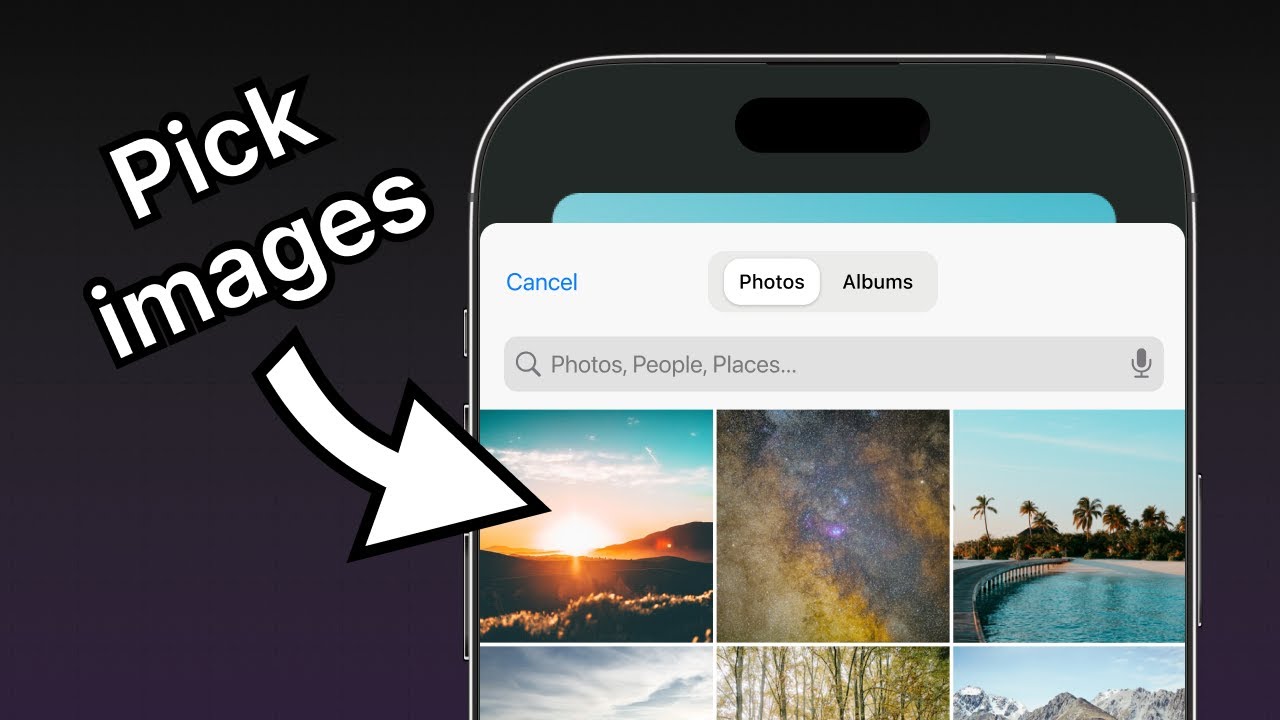
expo-image-picker提供访问系统 UI,以便从手机的库中选择图像和视频。
2
从设备的媒体库中选择图像
expo-image-picker 提供 launchImageLibraryAsync() 方法,通过选择设备媒体库中的图像或视频来显示系统 UI。我们将使用上一章中创建的主要主题按钮来从设备的媒体库中选择图像,并创建一个函数以启动设备的图像库以实现此功能。
在 app/(tabs)/index.tsx 中,导入 expo-image-picker 库并在 Index 组件内创建 pickImageAsync() 函数:
// ...其余的导入语句保持不变
import * as ImagePicker from 'expo-image-picker';

export default function Index() {
  const pickImageAsync = async () => {
    let result = await ImagePicker.launchImageLibraryAsync({
      mediaTypes: ['images'],
      allowsEditing: true,
      quality: 1,
    });

    if (!result.canceled) {
      console.log(result);
    } else {
      alert('You did not select any image.');
    }
  };

  // ...其余的代码保持不变
}
让我们了解上述代码的作用:
launchImageLibraryAsync()接收一个对象,以指定不同的选项。该对象是我们在调用该方法时传递的ImagePickerOptions对象。- 当
allowsEditing设置为true时,用户可以在选择过程中裁剪图像,适用于 Android 和 iOS。
3
更新按钮组件
按下主要按钮时,我们将在 Button 组件上调用 pickImageAsync() 函数。在 components/Button.tsx 中更新 Button 组件的 onPress 属性:
import { StyleSheet, View, Pressable, Text } from 'react-native';
import FontAwesome from '@expo/vector-icons/FontAwesome';

type Props = {
  label: string;
  theme?: 'primary';
  onPress?: () => void;
};

export default function Button({ label, theme, onPress }: Props) {
  if (theme === 'primary') {
    return (
      <View
        style={[
          styles.buttonContainer,
          { borderWidth: 4, borderColor: '#ffd33d', borderRadius: 18 },
        ]}>
        <Pressable style={[styles.button, { backgroundColor: '#fff' }]} onPress={onPress}>
          <FontAwesome name="picture-o" size={18} color="#25292e" style={styles.buttonIcon} />
          <Text style={[styles.buttonLabel, { color: '#25292e' }]}>{label}</Text>
        </Pressable>
      </View>
    );
  }

  return (
    <View style={styles.buttonContainer}>
      <Pressable style={styles.button} onPress={() => alert('You pressed a button.')}>
        <Text style={styles.buttonLabel}>{label}</Text>
      </Pressable>
    </View>
  );
}

const styles = StyleSheet.create({
  buttonContainer: {
    width: 320,
    height: 68,
    marginHorizontal: 20,
    alignItems: 'center',
    justifyContent: 'center',
    padding: 3,
  },
  button: {
    borderRadius: 10,
    width: '100%',
    height: '100%',
    alignItems: 'center',
    justifyContent: 'center',
    flexDirection: 'row',
  },
  buttonIcon: {
    paddingRight: 8,
  },
  buttonLabel: {
    color: '#fff',
    fontSize: 16,
  },
});
在 app/(tabs)/index.tsx 中,将 pickImageAsync() 函数添加到第一个 <Button> 的 onPress 属性中。
import { View, StyleSheet } from 'react-native';
import * as ImagePicker from 'expo-image-picker';

import Button from '@/components/Button';
import ImageViewer from '@/components/ImageViewer';

const PlaceholderImage = require('@/assets/images/background-image.png');

export default function Index() {
  const pickImageAsync = async () => {
    let result = await ImagePicker.launchImageLibraryAsync({
      mediaTypes: ['images'],
      allowsEditing: true,
      quality: 1,
    });

    if (!result.canceled) {
      console.log(result);
    } else {
      alert('You did not select any image.');
    }
  };

  return (
    <View style={styles.container}>
      <View style={styles.imageContainer}>
        <ImageViewer imgSource={PlaceholderImage} />
      </View>
      <View style={styles.footerContainer}>
        <Button theme="primary" label="Choose a photo" onPress={pickImageAsync} />
        <Button label="Use this photo" />
      </View>
    </View>
  );
}

const styles = StyleSheet.create({
  container: {
    flex: 1,
    backgroundColor: '#25292e',
    alignItems: 'center',
  },
  imageContainer: {
    flex: 1,
  },
  footerContainer: {
    flex: 1 / 3,
    alignItems: 'center',
  },
});
pickImageAsync() 函数调用 ImagePicker.launchImageLibraryAsync(),然后处理结果。launchImageLibraryAsync() 方法返回一个包含所选图像信息的对象。
以下是 result 对象及其包含的属性的示例:
{
  "assets": [
    {
      "assetId": null,
      "base64": null,
      "duration": null,
      "exif": null,
      "fileName": "ea574eaa-f332-44a7-85b7-99704c22b402.jpeg",
      "fileSize": 4513577,
      "height": 4570,
      "mimeType": "image/jpeg",
      "rotation": null,
      "type": "image",
      "uri": "file:///data/user/0/host.exp.exponent/cache/ExperienceData/%2540anonymous%252FStickerSmash-13f21121-fc9d-4ec6-bf89-bf7d6165eb69/ImagePicker/ea574eaa-f332-44a7-85b7-99704c22b402.jpeg",
      "width": 2854
    }
  ],
  "canceled": false
}
{
  "assets": [
    {
      "assetId": "99D53A1F-FEEF-40E1-8BB3-7DD55A43C8B7/L0/001",
      "base64": null,
      "duration": null,
      "exif": null,
      "fileName": "IMG_0004.JPG",
      "fileSize": 2548364,
      "height": 1669,
      "mimeType": "image/jpeg",
      "type": "image",
      "uri": "file:///data/user/0/host.exp.exponent/cache/ExperienceData/%2540anonymous%252FStickerSmash-13f21121-fc9d-4ec6-bf89-bf7d6165eb69/ImagePicker/ea574eaa-f332-44a7-85b7-99704c22b402.jpeg",
      "width": 1668
    }
  ],
  "canceled": false
}
{
  "assets": [
    {
      "fileName": "some-image.png",
      "height": 720,
      "mimeType": "image/png",
      "uri": "data:image/png;base64,iVBORw0KGgoAAAANSUhEUgAABQAA"
    }
  ],
  "canceled": false
}
4
使用所选图像
result 对象提供 assets 数组,其中包含所选图像的 uri。让我们从图像选择器中获取该值,并使用它在应用中显示所选图像。
修改 app/(tabs)/index.tsx 文件:
- 使用 React 的
useState钩子声明一个名为selectedImage的状态变量。我们将使用此状态变量来保存所选图像的 URI。 - 更新
pickImageAsync()函数以将图像 URI 保存到selectedImage状态变量中。 - 将
selectedImage作为道具传递给ImageViewer组件。
import { View, StyleSheet } from 'react-native';
import * as ImagePicker from 'expo-image-picker';
import { useState } from 'react';

import Button from '@/components/Button';
import ImageViewer from '@/components/ImageViewer';

const PlaceholderImage = require('@/assets/images/background-image.png');

export default function Index() {
  const [selectedImage, setSelectedImage] = useState<string | undefined>(undefined);

  const pickImageAsync = async () => {
    let result = await ImagePicker.launchImageLibraryAsync({
      mediaTypes: ['images'],
      allowsEditing: true,
      quality: 1,
    });

    if (!result.canceled) {
      setSelectedImage(result.assets[0].uri);
    } else {
      alert('You did not select any image.');
    }
  };

  return (
    <View style={styles.container}>
      <View style={styles.imageContainer}>
        <ImageViewer imgSource={PlaceholderImage} selectedImage={selectedImage} />
      </View>
      <View style={styles.footerContainer}>
        <Button theme="primary" label="Choose a photo" onPress={pickImageAsync} />
        <Button label="Use this photo" />
      </View>
    </View>
  );
}

const styles = StyleSheet.create({
  container: {
    flex: 1,
    backgroundColor: '#25292e',
    alignItems: 'center',
  },
  imageContainer: {
    flex: 1,
  },
  footerContainer: {
    flex: 1 / 3,
    alignItems: 'center',
  },
});
将 selectedImage 属性传递给 ImageViewer 组件,以显示所选图像,而不是占位图像。
- 修改 components/ImageViewer.tsx 文件以接受
selectedImage属性。 - 图像的来源变得冗长,因此让我们还将其移到名为
imageSource的单独变量中。 - 将
imageSource作为source属性的值传递给Image组件。
import { ImageSourcePropType, StyleSheet } from 'react-native';
import { Image } from 'expo-image';

type Props = {
  imgSource: ImageSourcePropType;
  selectedImage?: string;
};

export default function ImageViewer({ imgSource, selectedImage }: Props) {
  const imageSource = selectedImage ? { uri: selectedImage } : imgSource;

  return <Image source={imageSource} style={styles.image} />;
}

const styles = StyleSheet.create({
  image: {
    width: 320,
    height: 440,
    borderRadius: 18,
  },
});
在上述代码片段中,Image 组件使用条件运算符加载图像的来源。所选图像是一个 uri 字符串,而不是占位图像那样的本地资产。
现在让我们看看我们的应用:
本教程中示例应用使用的图像来自 Unsplash。
总结
第四章:使用图像选择器
我们成功添加了从设备媒体库中选择图像的功能。
在下一章中,我们将学习如何创建一个表情符号选择器模态组件。